
A Privacy and Security Review Guide for Janitor AI
Independent editorial guidance on compatibility, device settings, safety, and responsible use.
The question “O Janitor AI APK é Seguro? Relatório de Antivírus e Privacidade” asks about both the integrity of a file and the handling of conversation data. Those questions need different evidence. This page gives you a way to review the access route, device permissions, and disclosures before deciding what to use. It describes checks you can make and supplies no test results for a particular file or service.
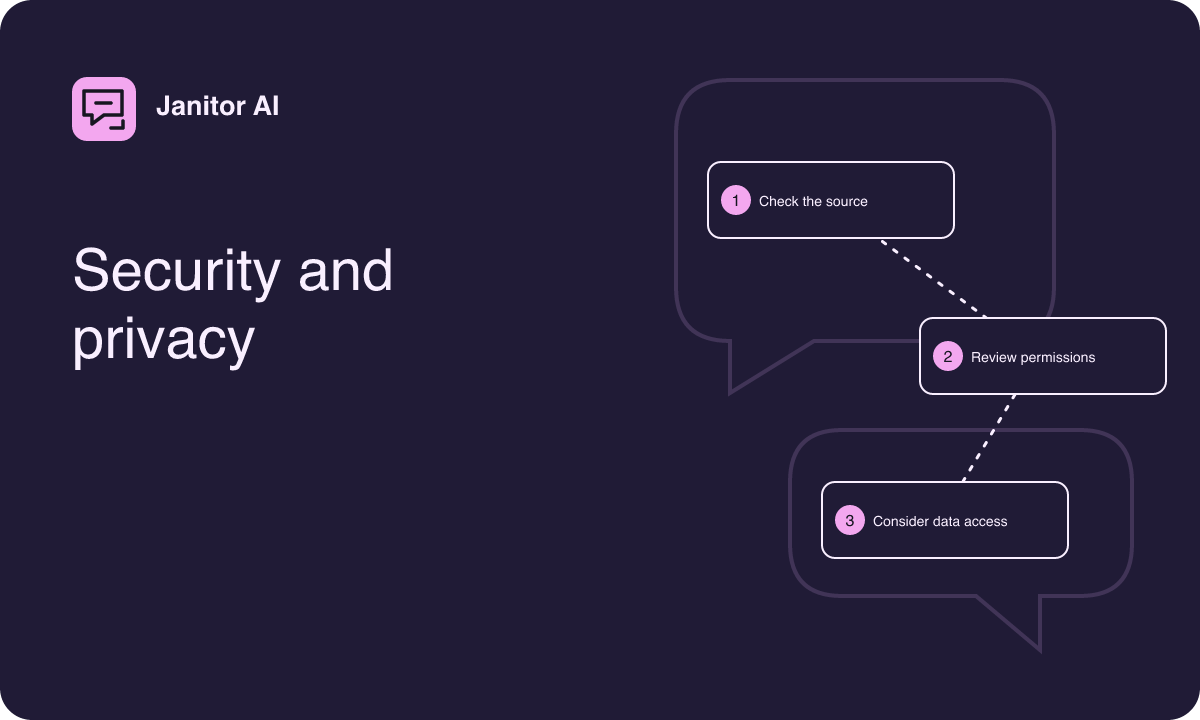
Establish what the review covers
Begin by identifying what you want to evaluate. A page in a browser, a home screen shortcut, and a separately installed Android package each use different system controls. Look at where the access route was documented and who is responsible for it. For an installed app, check how it appears in system settings and identify the store or distribution source used. If all you have is a filename shared in a comment, there may be no defensible way to connect it to the service.
Write down the platforms and features relevant to your use. For example, a text-only browser session and an installed app with a documented audio option present different questions about microphone access. Keep the review tied to the environment you actually plan to use. A permission declared for an installed app tells you little about what a different browser route requests.
Interpret antivirus claims in context
A report can be useful when it identifies exactly what was examined, when the check occurred, and which methods were used. An image of a green check mark leaves those questions unanswered. A clean result can mean that a scanner found nothing it recognized in the material it checked. It does not establish the identity of a distributor or explain how the app uses data after it runs.
An authorized distribution source is a separate check. Confirm it independently, keep your device protection enabled, and take system warnings seriously. If the device reports an unsafe package, keep the warning text for reference and stop the install. Avoid uploading unknown or private files to scanning websites as a routine troubleshooting step. A scan site may handle submitted files according to its own terms.
Review permissions with a specific purpose in mind
- Look at the permissions the authorized listing describes, where available.
- On the device, check the installed app or browser's site permissions for the actual route.
- Make a note of what you expect to need. A written fictional conversation usually calls for fewer device capabilities than a multimedia feature.
- Review prompts in context and decline optional access while evaluating a text workflow.
- Revisit the device permission screen after your test and revoke access that you no longer use.
For example, a microphone request after selecting a documented voice feature has a purpose you can evaluate. A persistent request to access contacts when opening a text composer calls for checking what the publisher says and whether you can continue without granting it.
Read the data disclosures in layers
Look for explanations of what happens to a prompt, a generated reply, and a character profile. Determine whether a profile you write becomes visible publicly and whether conversations are retained. Read the provider's explanation of optional analytics, model processing, deletion, and export if they are covered. If an outside model provider is involved, check whether its materials apply to the integration you use.
Consider information beyond the text you submit. Sites and apps may process technical information for operation or diagnostics, and device settings can create local records. For example, a browser can retain a page in history or a keyboard can remember suggestions depending on its settings. A privacy document may describe service retention without addressing what your household device keeps locally.
Choose a sample that exposes little
Use invented names and a fictional place when testing a conversation. Keep information about real people, medical questions, private writing, and workplace material out of the sample. If a privacy control claims to change who can view something, check with a harmless profile and read what the interface says before saving or publishing. Remember that the visible result from one view cannot establish every aspect of storage or processing.
On a shared device, look at lock screen previews, tab restoration, and browser profile access. If you take screenshots for a support question, remove unrelated tabs, names, and anything visible in the margins. A plain description often conveys enough without showing the original material.
Respond to unexpected behavior
If a page prompts you to install an unfamiliar component or the installed app requests a capability you cannot explain, pause the session. Revisit the independently verified source and compare the prompt with its documentation. If you installed an app and no longer trust its origin, review its permissions and use the device's standard app controls and security guidance. Keep any information you need for a support report limited to the wording of the warning, the device family, and the action that produced it.
During ordinary use, browser redirects can have many causes. Start by checking where the page says you are and whether the invite or shortcut you used still routes as expected. A copied logo tells you less than a verified destination.
Record the evidence behind your decision
A useful review distinguishes what you observed from what a source says. You might record that a verified web page opens on your tablet, that the site permission panel shows no microphone grant, and that you still have a question about model processing. Those are three different kinds of information. Include the date and route you checked so the record remains meaningful if the page changes.
Review the points again when a new route or feature changes the information you share. The decision you need to make is whether you can identify the source, understand the permissions, and use the service with the amount of information you are comfortable providing.
If you revisit the review after the service introduces an optional attachment feature, start with the documentation for that feature and your device's file picker behavior. A selected file can contain information beyond what is visible in its preview. Use a simple file you created for testing if you need to understand the workflow, and check what the interface says about removing an attachment before submission. Afterward, revisit the relevant access settings and note whether the device shows any lasting permission. Keep any questions about server-side retention tied to the provider's published explanation.