
Troubleshooting Janitor AI Connection Errors
Independent editorial guidance on compatibility, device settings, safety, and responsible use.
A blank screen, a connection warning, and a reply that never finishes leave different clues. If you searched “Janitor AI Fora do Ar ou Tela Preta? Como Resolver Erros Comuns”, start by identifying the earliest step that fails. A careful first check can save you from clearing useful browser data, changing several settings at once, or sending a support report that is too broad to reproduce.
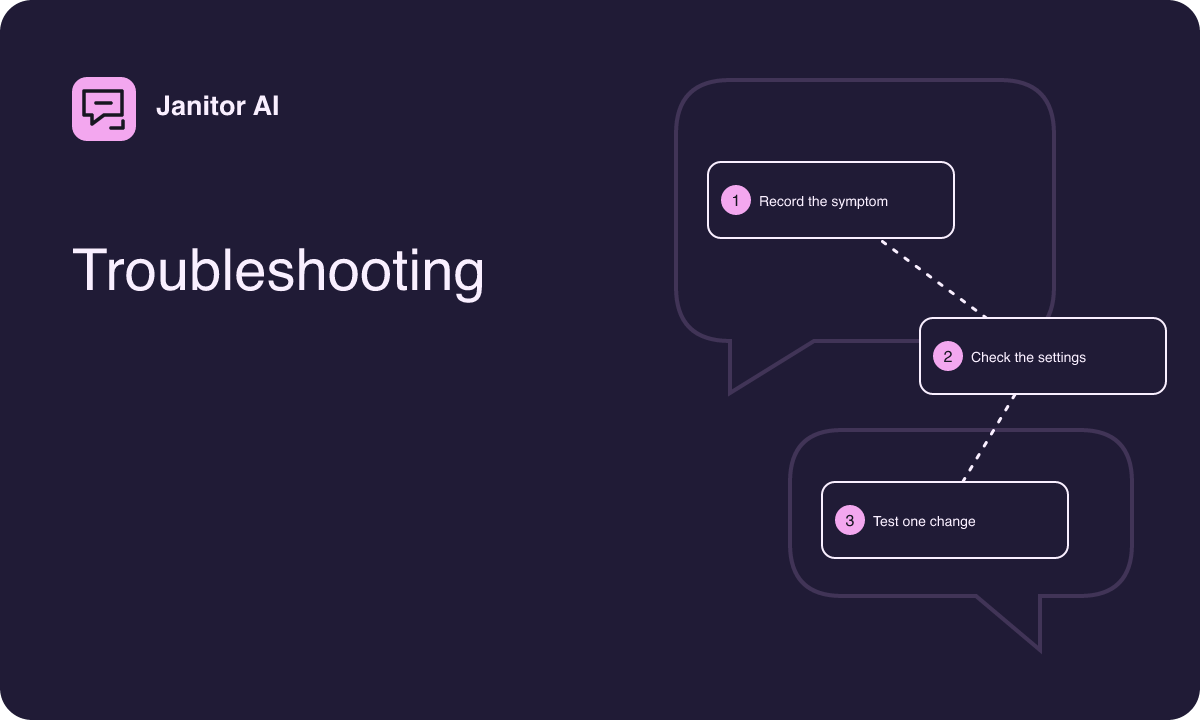
Describe the symptom before changing settings
Write down what is visible. The site may never load, or the page may load but remain dark except for its navigation. You might see the character panel while the composer is empty or get a message only after submitting text. Capture the approximate time and time zone. If an error appears, keep its wording after removing any personal detail. Use a harmless sample if you need to try again.
A delayed reply is different from an unresponsive screen. Check whether you can scroll the transcript or open a menu while the reply is waiting. If the page itself will not accept input, note whether other tabs or apps are still responsive. Those observations determine whether the next useful comparison involves your device, your connection, or a particular feature inside the service.
Check the connection using a simple comparison
- Open a familiar, unrelated page in the same browser and see whether it loads normally.
- Return to the verified Janitor AI access route and record what you see there.
- If you have another permitted connection available, repeat the first two checks on that connection with the same device.
- If the service maintains a status or announcement channel you can verify, check the time and scope of any incident described there.
On shared or managed Wi-Fi, a network may restrict certain kinds of traffic or display a sign-in page before general browsing works. Use the network's ordinary support process if that seems relevant. If unrelated pages fail too, work on the connection first. If only one example fails, the network comparison is useful evidence but does not establish the cause.
Investigate a black or partially drawn screen
First check display brightness, browser zoom, and whether the page is obscured by a dialog. Rotate a phone once and return it to your preferred orientation. On desktop, restore the browser window to a common size. If something becomes visible after a resize, record where it was hidden. A screenshot of a neutral page state can show the difference without displaying the contents of a conversation.
Try another browser supported by the service if you have one available. A browser extension that changes colors or filters page elements may produce a result that appears only in one profile. Compare with an ordinary profile you control while keeping built-in protection enabled. If the problem started around an update, include that timing but keep track of which changes you actually observed.
Separate one conversation from a broader failure
If navigation works but a reply hangs, see whether a new sample conversation behaves the same way. Use a very short fictional prompt and avoid repeatedly sending it if the first request appears pending. A single thread can have a long transcript or a character configuration that differs from another session. Inspect whether the visible loading indicator clears and whether the composer becomes available again.
If the verified interface lets you choose between documented model options, note which option was selected at the time. Keep the prompt and other settings stable when comparing authorized options. A result that varies by conversation or model gives support a narrower question. If the whole site fails before the conversation opens, spend time on the access route and device rather than editing a character setup.
Use browser data controls selectively
A reload can be helpful if part of the interface stopped responding. Save any unsent text you need somewhere appropriate before reloading. If you are using an authorized installed app, check whether closing and reopening it changes the behavior. Restarting the device can be useful when several applications have trouble or a system update is waiting for a restart.
Clearing browsing data or app storage has a larger effect. Review what the browser or operating system says will be removed and check the service documentation for how conversations or settings are retained. A problem limited to one site does not call for clearing information from every site on the device. If you can isolate the failure using a different supported browser first, that may answer the immediate question with less disruption.
Decide when to wait and when to report
If a verified status message describes the same feature and timing, use that source for further updates and save your work outside any unsent field you might lose. If no message matches and the issue is repeatable, prepare a report. State whether the problem began before the page rendered, during navigation, after selecting a character, or after sending text. Give the device and browser family and describe one successful comparison if you made one.
For example, “The landing screen loads, but opening a sample character leaves a dark panel in my usual mobile browser. The same sample opens on another supported browser on the same connection” is specific enough to guide a first response. A report like that avoids full chat logs, private account details, or network diagnostics that could identify other people.
Keep a record of the working configuration
Once you find a usable route, note the conditions under which it works. If switching browser profiles resolved a layout issue, record the visible difference and keep the working bookmark where you can find it. Reintroduce any optional display adjustments one at a time so you can identify which setting affects the page. Preserve managed settings if the computer belongs to a workplace or school.
A clean comparison is worth keeping even if the issue disappears on its own. If the symptom returns, you can repeat the same small checks and say whether it occurs under the same conditions or in a different part of the interface.
A failure that appears only after a device wakes from sleep is worth describing on its own. Compare a newly opened sample page with the tab that was already open before sleep. Save any draft before refreshing the older tab. If the new page works while the restored tab stays blank, report the device wake and tab restoration as part of the sequence. That observation can narrow the investigation without changing settings across the whole browser.